lightning-flow-scanner-app

Detect unsafe contexts, queries in loops, hardcoded IDs, and more to optimize Salesforce Flows.
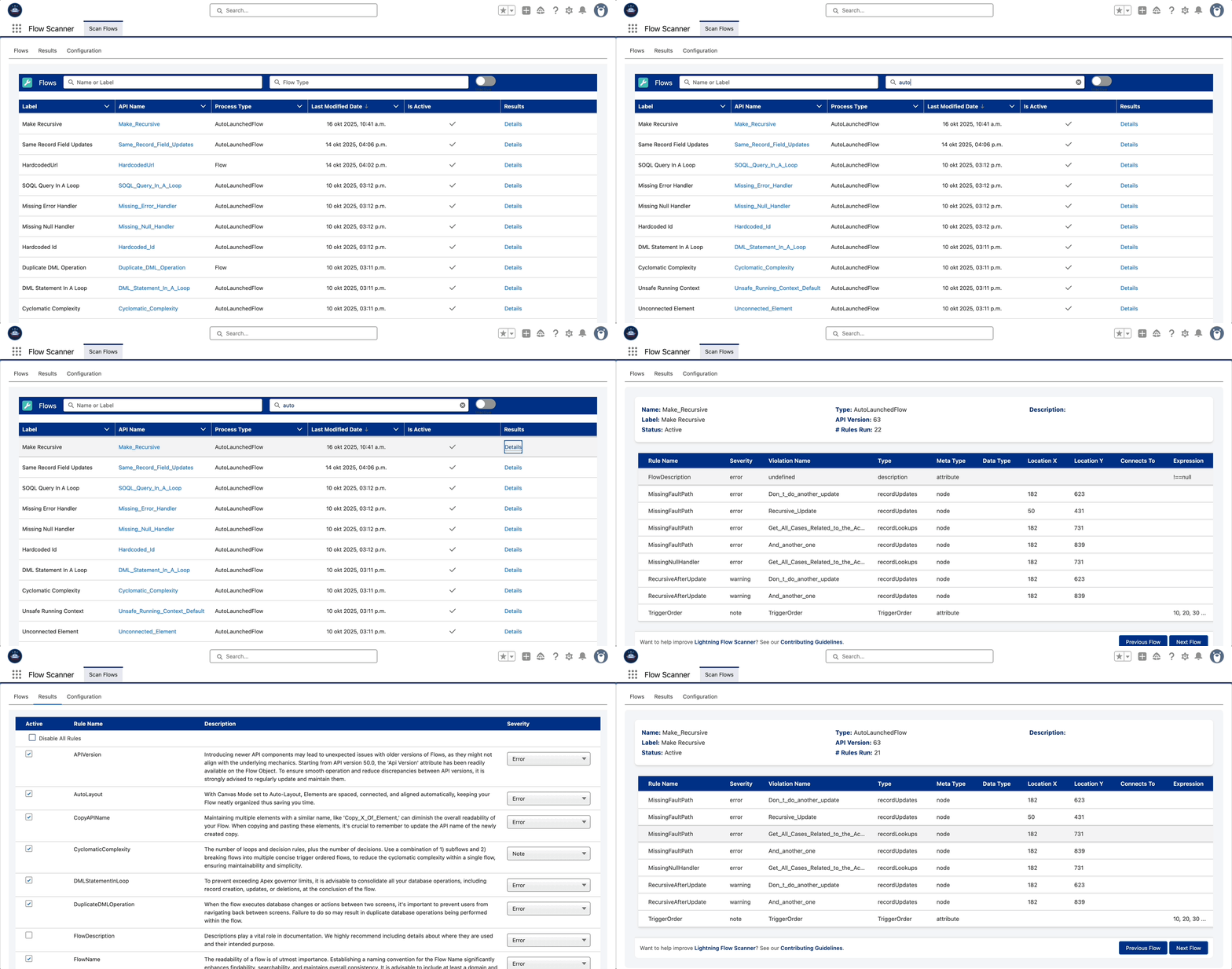
Lightning Flow Scanner App is a free Salesforce app for static analysis of Flows. It scans your flow metadata directly inside your org — no data leaves Salesforce — and flags 20+ best-practice violations such as unsafe running contexts, SOQL and DML statements in loops, hardcoded IDs and URLs, missing fault paths, and unused variables, before they reach production.
Table of contents
Features
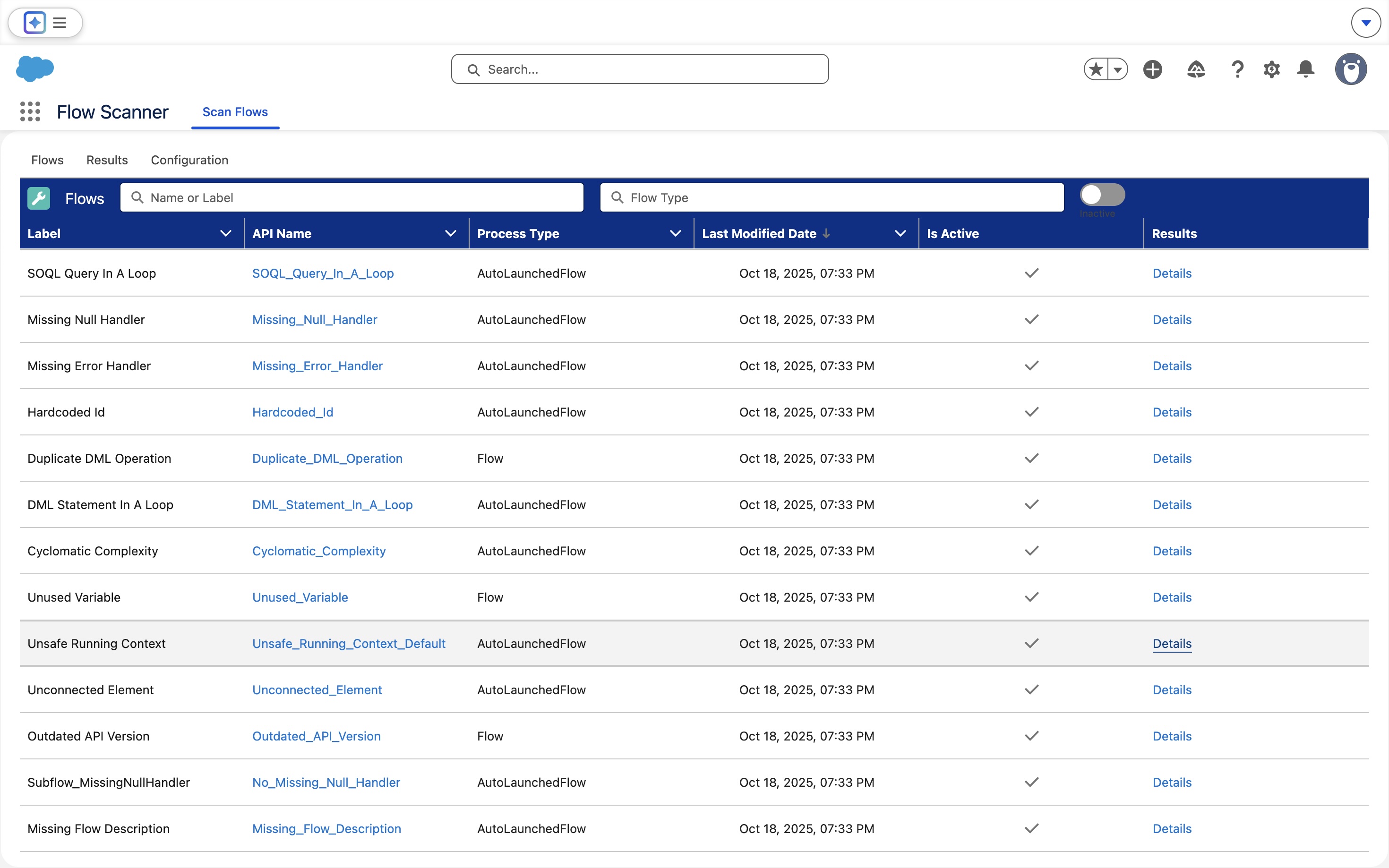
Flow Overview
Browse every flow in your org with live issue counts, search by name, label, or type, and open any flow directly from its API name.
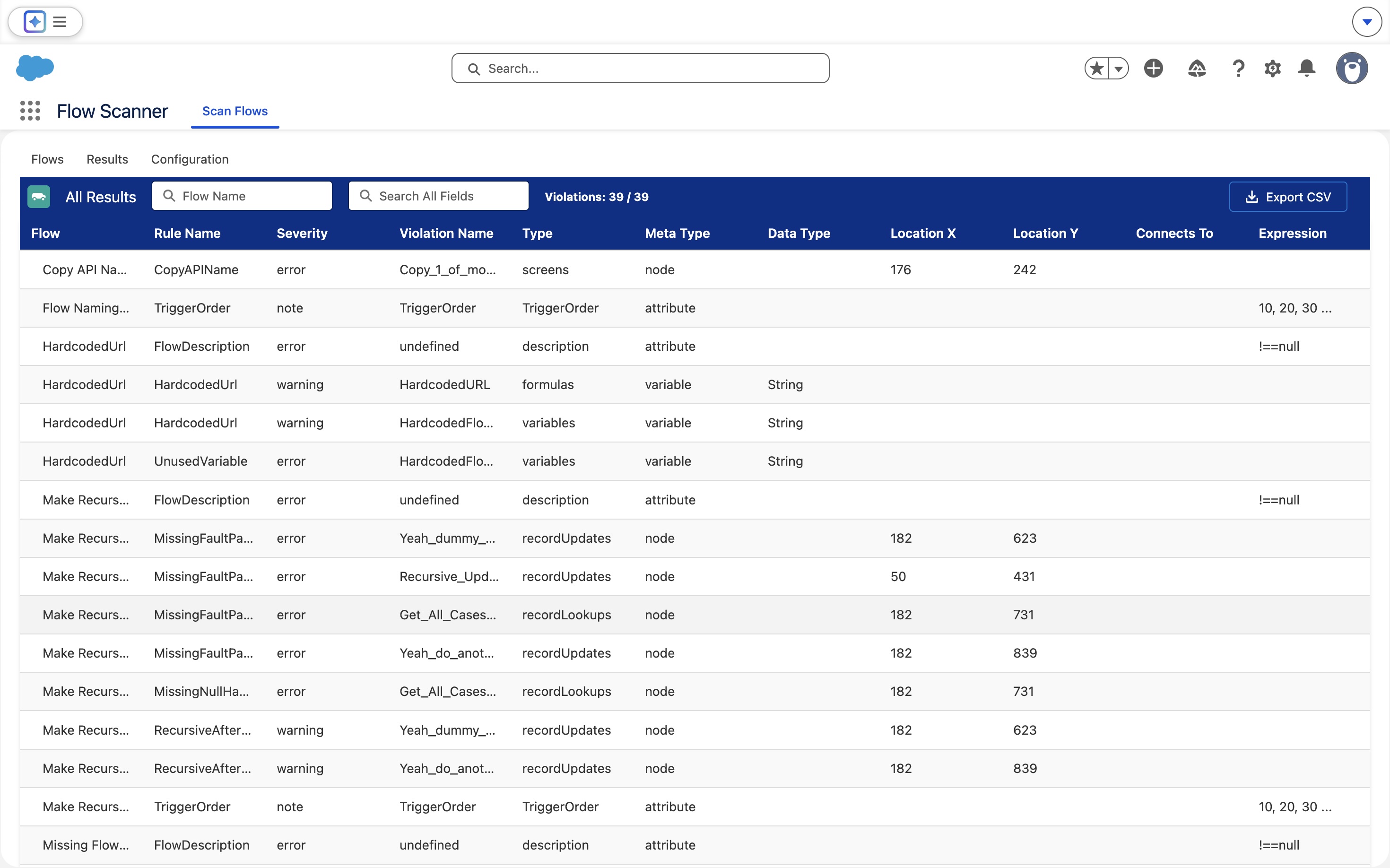
Violation Details
All scan results in one sortable, searchable table: rule, severity, and contextual details for every violation, with links to each flow and CSV export.
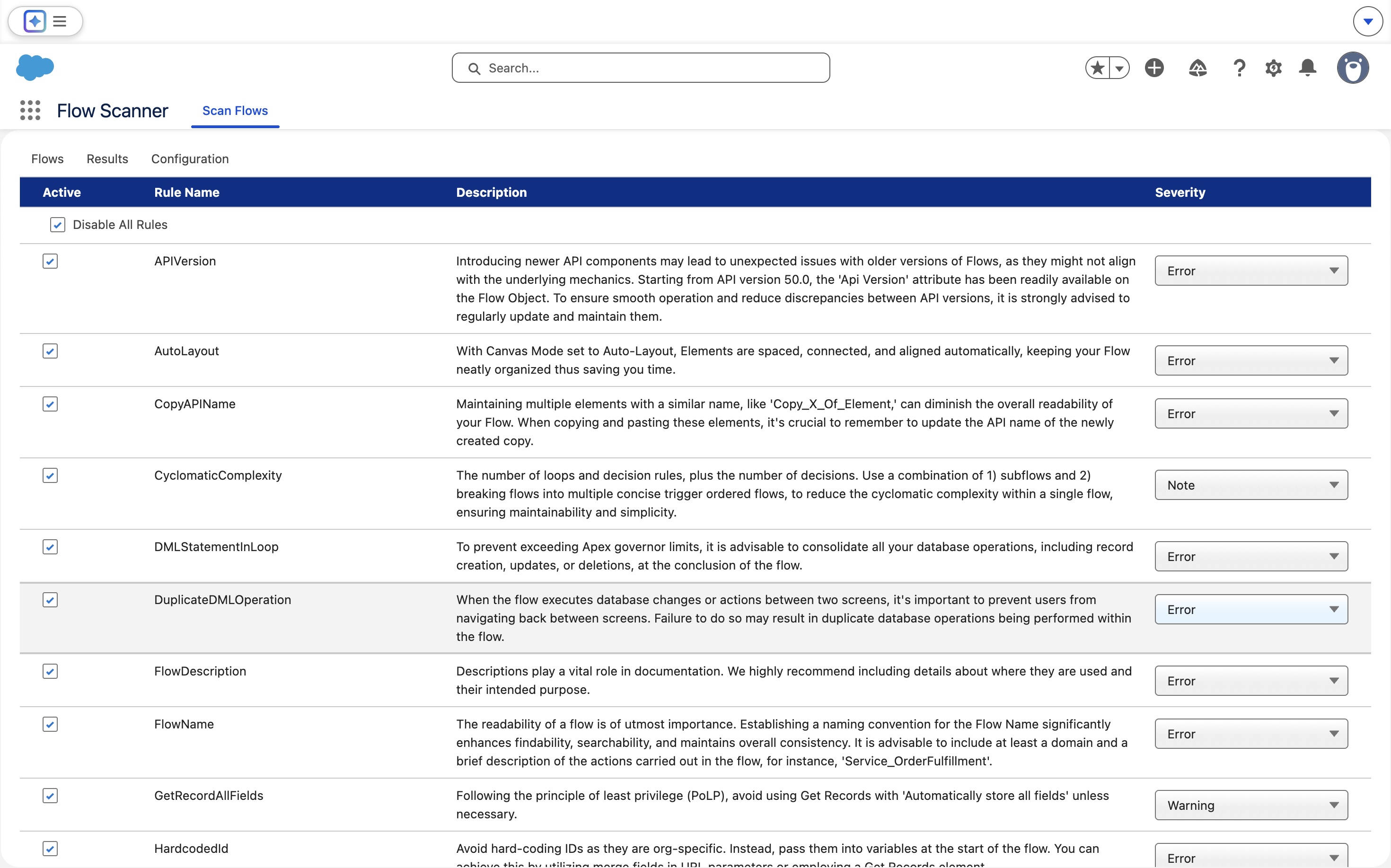
Rule Configuration
Enable, disable, and tune every rule inline — severity, expressions, and thresholds — or use the guided wizard, config file import/export, and org-wide saving.
Usage
Lightning Flow Scanner App integrates the Lightning Flow Scanner as a UMD module within Salesforce, enabling scanning of flow metadata for 20+ issues such as hardcoded IDs, unsafe contexts, inefficient SOQL/DML operations, recursion risks, and missing fault handling.
- Click on the App Launcher icon in the top-left corner of your Salesforce interface.
- Search for “Flow Scanner” in the App Launcher.
- Click on the “Flow Scanner” app to open the Scan Flows Overview.
- (Optional) Configure rules in the Configuration tab.
- View results of a Flow by clicking “details”.
For details about all available rules, their default severities, and configuration options, visit the Flow Scanner Documentation.
Privacy: Zero user data collected. All processing is client-side. → See Data Handling in our Security Policy.
Configuration
While no configuration is required, you can configure rules in several ways: inline in the Configuration tab, through the guided Configure Rules wizard, by importing a config file, or via Custom Metadata org defaults. Use Save to Org to persist the current configuration org-wide (admins only) — it loads automatically for everyone who opens the app; unsaved changes apply to the current browser session only. For full config reference, see the documentation.
Org defaults (Custom Metadata)
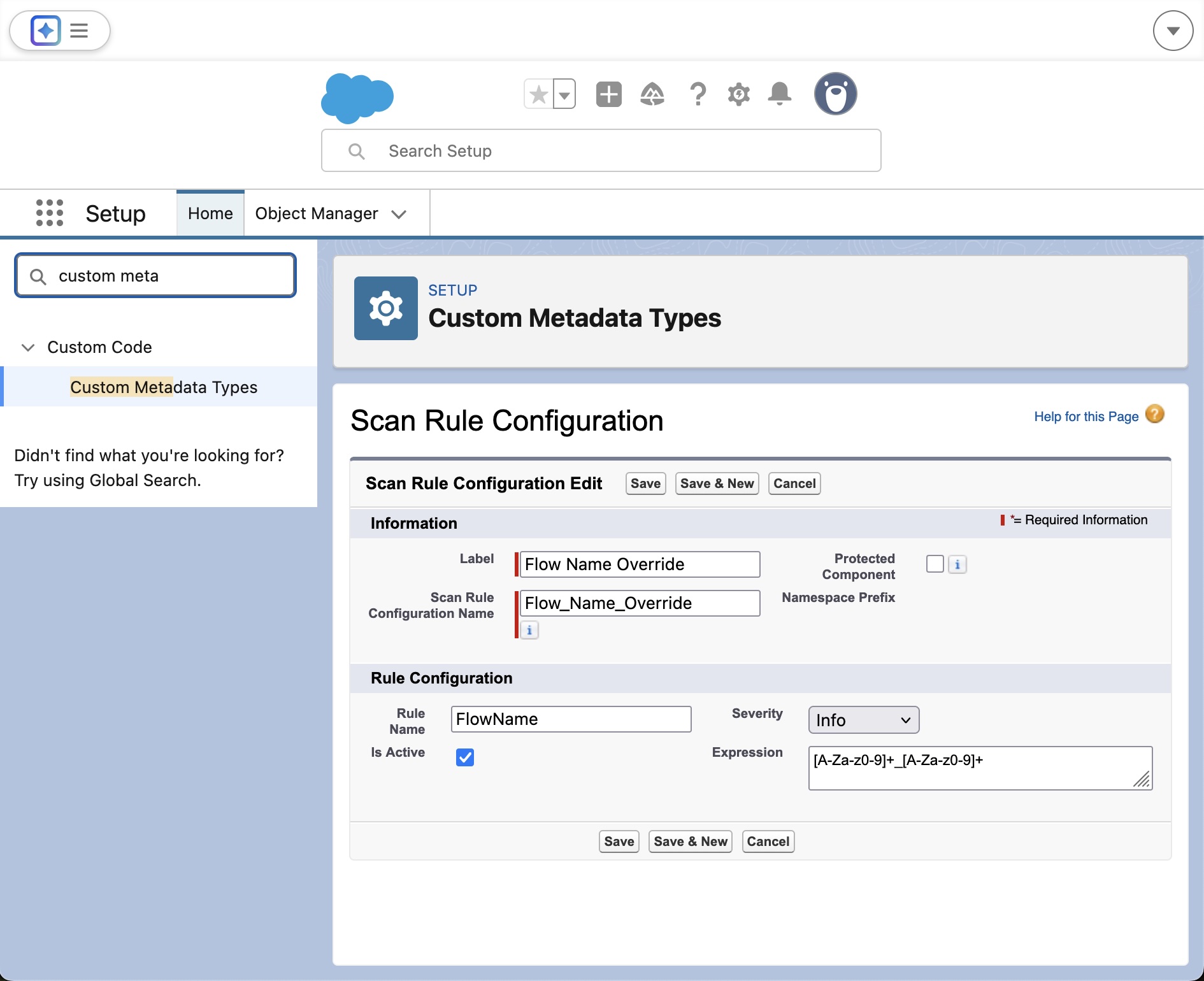
Admins can define default severities, expressions, or disabled states for scan rules using the ScanRuleConfiguration__mdt custom metadata type. These overrides apply globally for all users in the org; individual users can still adjust severities or disable rules locally in the browser.
- Go to Setup → Custom Metadata Types → ScanRuleConfiguration → Manage Records
- Click New and set the following fields:
- Rule Name — legacy name (e.g.
FlowName) or canonical rule id (e.g.invalid-naming-convention) - Severity —
Error,Warning, orNote(other values are ignored) - Expression (optional) — e.g.,
[A-Za-z]+_[0-9]+ - Disabled — check to turn off the rule globally
- Once saved, the Flow Scanner App automatically applies these overrides at load time.
Import a config file (same format as CLI / VS Code)
On the Configuration tab, use Load config to import a .flow-scanner.json or .flow-scanner.yml file — the same files the CLI reads and the VS Code extension writes. Supported:
- Per-rule
severity(error/warning/note; anything else is ignored),enabled/disabled,expression,threshold,message,messageUrl - Rule keys as rule ids (
excessive-cyclomatic-complexity) or legacy names (CyclomaticComplexity) - Top-level
threshold,categories,exceptions,ignoreFlows, and related scan options ruleMode: "isolated"— only the rules named in the config run; all others are deactivated
Example:
{
  "rules": {
    "excessive-cyclomatic-complexity": { "threshold": 30, "severity": "warning" },
    "cognitive-complexity": { "threshold": 15 },
    "invalid-api-version": { "expression": ">=58" },
    "invalid-naming-convention": { "expression": "[A-Za-z0-9_]+" },
    "hardcoded-id": { "enabled": false }
  },
  "threshold": "warning",
  "categories": ["problem", "suggestion"]
}
Imported values feed the in-browser scan immediately (and re-scan if results are already open).
Configure Rules wizard, export, and org-wide saving
The Configuration tab toolbar also offers:
- Configure Rules — a guided wizard (like the VS Code extension’s Configure Scanner): choose merged or isolated rule mode, opt into beta rules, select rules, and set thresholds/expressions with validation, then review and apply.
- Save to Org — stores the current configuration in the
Flow_Scanner_Saved_Config__mdtcustom metadata type (deployed via the Metadata API, takes 10–30 seconds; requires Customize Application). Saved configuration loads automatically for everyone who opens Flow Scanner, layered on top ofScanRuleConfiguration__mdtdefaults. - Export — downloads the current configuration as
.flow-scanner.json, directly usable by the CLI and the VS Code extension. - Reset — discards session changes and returns to core defaults plus Custom Metadata overrides.
Edit rule options in the app
Rules with configurable options (e.g. the naming expression or complexity threshold) show an inline editor in the Options column of the Configuration tab. An empty field uses the core default (shown as placeholder); press Enter or click away to apply a value and re-scan. Editors are generated from the scanner core’s rule metadata, so newly added configurable rules appear automatically.
Installation
| Deployment Type | Installation |
|---|---|
| AppExchange(managed) |  |
| Unmanaged | |
| Or via CLI | sf package install --package 04tgK000000J269QAC --wait 10 |
After installation, complete the Post-Installation Setup to configure the External Client App and assign permissions.
Development
1) Clone this repository:
git clone https://github.com/Flow-Scanner/lightning-flow-scanner-app.git
2) Create a Scratch Org
sf org:create:scratch --definition-file config/project-scratch-def.json --alias FlowScanner --duration-days 7 --set-default --json
3) Push Source to Your Org:
sf project:deploy:start
4) Assign Permission Set
sf org assign permset --name Flow_Scanner
Want to help improve Lightning Flow Scanner? See our Contributing Guidelines